
An email rule is a normal feature. It's what files your newsletters into a folder. Someone who gets into a mailbox can use the same feature to keep messages away from the person who owns it.
Read the transcript
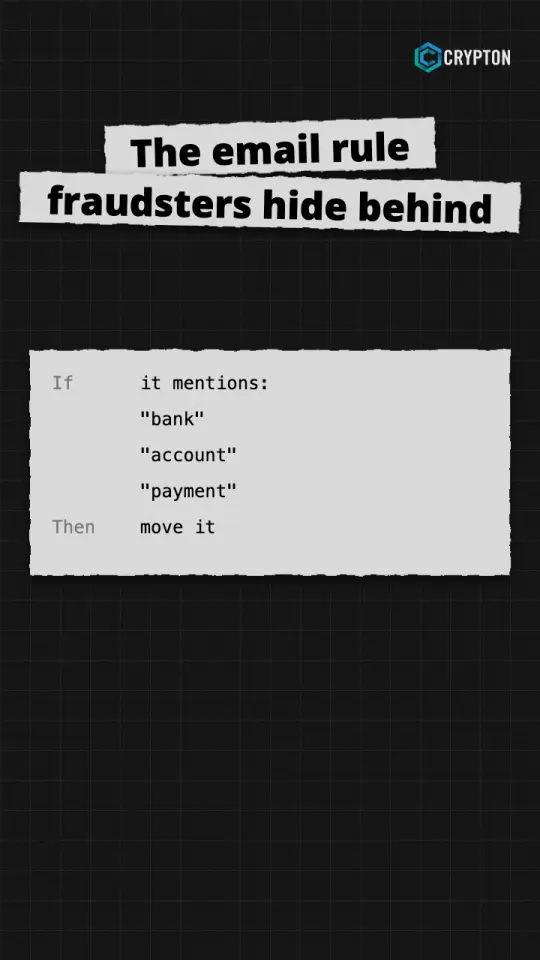
Here's a trick email fraudsters use that's easy to miss. Once they're inside a mailbox, they can create a rule, the normal feature you'd use to file newsletters. Except this one takes any email that mentions "bank", "account" or "payment" and moves it where nobody looks. So when a client replies, "Are these new bank details right?", the real person never sees it. The attacker answers instead. The fix: get an alert whenever a rule is created that forwards, moves or deletes email. And check your own rules today.
Try the Law Firm IT Health Check, or talk to CRYPTON. The link is below.
What a hidden rule can do
Microsoft's guidance on inbox manipulation rules says attackers might set rules that hide, delete or forward email, or move it to a folder people rarely open. Some rules act only on messages containing certain words.
In a law firm, that could mean any message mentioning "bank", "account" or a client's name. If a client replies to ask about new bank details, the real person may never see the question. That's one step in how email fraud steals a settlement payment.
Check your own rules
Menu names vary between email systems, so ask your IT provider if you can't find the right screen.
- Open your email settings and find the section for rules.
- Read each rule. Note what triggers it and what it does.
- Find the automatic forwarding setting and check it too, because it may sit apart from your rules.
- Repeat for shared mailboxes, and for anyone who handles payment instructions.
What looks unusual
Be wary of a rule you don't remember creating, especially one that:
- forwards messages to an outside address
- moves messages to a folder nobody opens
- deletes messages or marks them as read
- acts on words such as "bank", "account", "payment" or "invoice"
An unexpected rule isn't proof of a break-in, because a colleague or an old system may have set it up. It still needs investigating.
If you find one you don't recognise
Tell your IT provider before you change it, so they can see what it did and when it was created. If it was malicious, removing it is only part of the job: they also need to work out how the attacker got in and what was read or forwarded.
The ACSC's business email compromise guidance sets out the first steps:
- If you've sent money or banking details to a scammer, contact your bank immediately.
- Report the incident to the Australian Signals Directorate.
- Change the password on any affected email account, and notify anyone affected.
If client information may be involved, your firm's responsible partner should also consider its professional and privacy obligations. Treat any payment instructions sent during that time with extra care.
Don't rely on spot checks
A manual check only tells you about today. Ask your IT provider whether you get an alert when someone creates a rule that forwards, moves or deletes email, and when someone signs in from somewhere unusual. Those alerts can flag a change nobody would otherwise see.
General information only, not legal or professional advice.
For help setting this up, see email security.